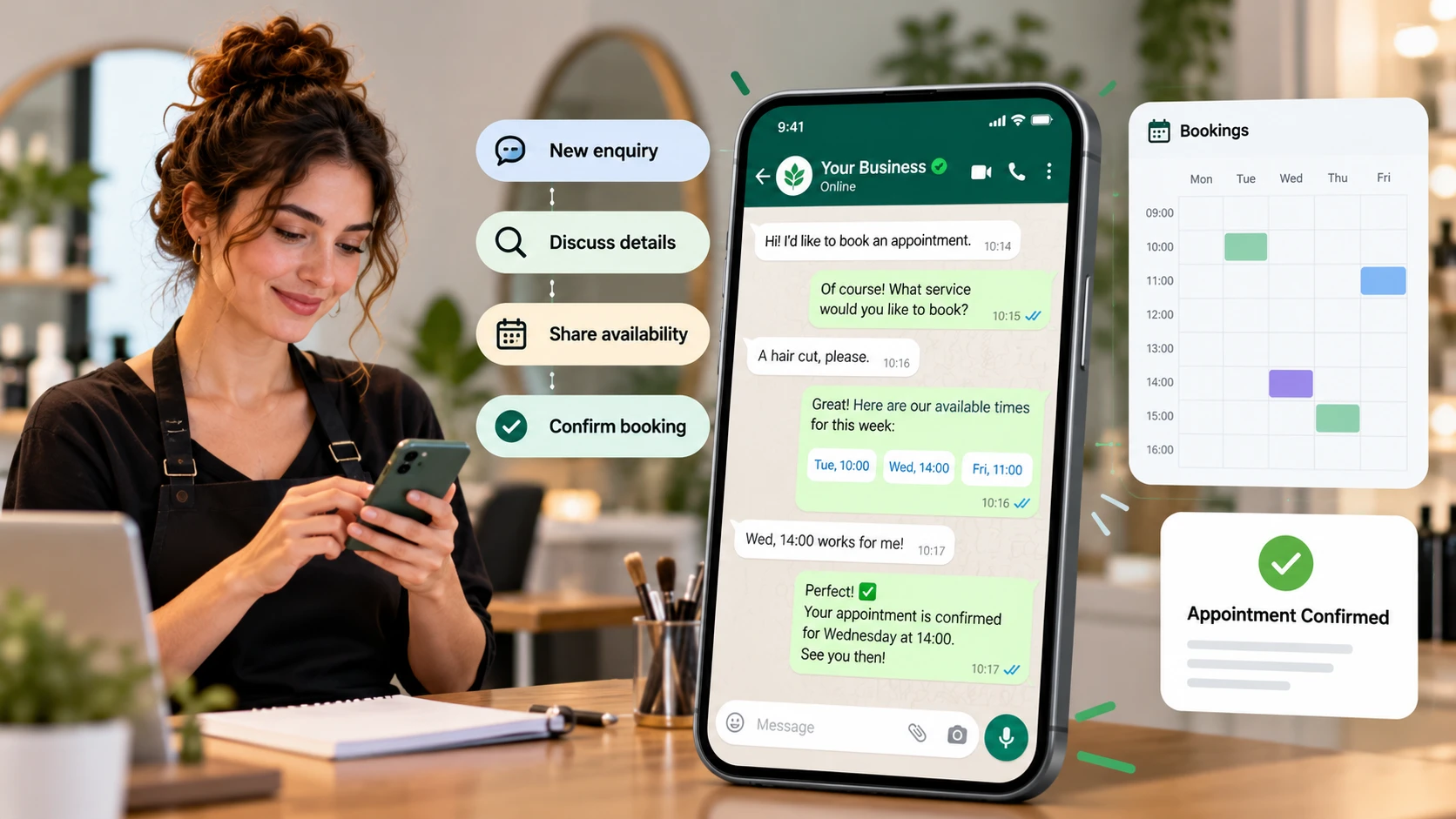
Managing bookings with WhatsApp Business means distinguishing a conversation from an accepted appointment. “An afternoon would work” does not establish the service, date, or start time. A simple process prevents those details being scattered across messages.
Use the app for communication and maintain a reliable schedule. This guide covers incoming requests, reusable replies, availability, acceptance, and changes. It does not assume that Liik includes a WhatsApp bot or automatic messaging integration.
Choose one schedule as your reference
Decide where accepted appointments are recorded. It can be the calendar you already use if you keep it current. Do not treat each chat as a separate diary.
When a time changes in WhatsApp, update the schedule before considering the change complete. Requests from other channels must reach the same reference. A public booking page does not automatically know what you agreed in a private conversation.
Keep the message history as context while making the current record unambiguous. Two old offers are not two available appointments. Check again before promising a time.
For example, a client may choose an option after another person has accepted it. Your next action is to check and explain the current situation, rather than sending an outdated confirmation template.
For a one-person barbershop, the calendar also needs to include preparation and cleanup between clients. The solo barber online booking guide shows how service time and a full working block differ. Use the same block when offering a time in WhatsApp.
Set a realistic communication expectation
Complete the business identity and useful contact information. The official WhatsApp Business app overview describes business communication features. Check what your current account and device actually provide.
State when messages are monitored. A greeting or away message can acknowledge contact, but should not claim a time is reserved before it has been checked. Use a response period you can meet while delivering services.
Example: “Thanks for your message. We respond during [actual hours]. Please tell us the service and preferred day. Appointment requests need confirmation.” Adapt the text rather than copying an unrealistic promise.
Distinguish the Business app from the Business Platform and other products. Features advertised for one solution should not be assumed to work in every account. Avoid instructions based on an old menu path when labels differ.
Ask questions that support a booking decision
Start with the service, preferred day or period, and location when relevant. Read the conversation first so the client does not repeat information. A small number of purposeful questions works better than an unexplained interrogation.
Clarify the request, check the conditions, and offer a real option. If scope is uncertain, use an enquiry or assessment step. Do not force a booking for the wrong service merely to finish the exchange.
Keep sensitive histories and unnecessary documents out of a general scheduling conversation. Use an appropriate professional process where detailed information is required. More information is not automatically more useful at this stage.
Explain why a location question matters for a mobile service. Clients can understand a coverage check when it is connected to accepting the visit. They should not discover a restriction after believing the time is secured.
You can make the first enquiry easier to understand with a WhatsApp link containing a prefilled message. Ask for the service and preferred day, then verify availability yourself. The prefilled text should request a visit rather than announce a reservation.
Reuse replies while checking their details
WhatsApp's quick-reply guidance describes reusable messages. A saved reply should not be confused with a bot that evaluates availability and completes appointments independently.
Keep separate wording for service information, request received, time offered, and appointment confirmed. Check the name, date, applicable cost, and change route before sending. A template containing yesterday's date creates extra work.
Offer wording: “I can offer [actual option] for [service]. Would you like that time? We will confirm once the details are agreed.” Use confirmed wording only after acceptance and the schedule check.
Confirmation wording: “Your [service] is confirmed for [day, date] at [time and relevant zone], at [location or access]. For changes, contact [route].” These are editable examples, not an automatic sending feature in Liik.
Organise conversations by the next action
Where your version supports labels or conversation lists, choose categories matching the workflow. New request, awaiting client, and confirmed are practical examples. Check the controls available in the current application.
A category should help determine what to do. “Awaiting a time choice” is more operationally useful than a vague personal judgement. Avoid recording unnecessary information about the person.
Update the category when the situation changes. A confirmed chat left in a pending group can trigger a duplicate enquiry. Organisation only helps when it follows the actual work.
Labels are not calendar locks. They describe conversation state; available time still needs to be checked in the schedule. Keep those responsibilities separate.
Confirm the agreement and record changes
Repeat service, date, time, place, and important conditions before closing. State whether approval remains pending. A friendly thank-you should not be the only indication of appointment status.
For remote work, make the zone explicit. A clock time alone may be interpreted differently. If you provide a calendar entry, open it and check the appointment date and actual time.
Explain fees or pricing criteria before agreement. Deposits and payments need a separately verified process. Do not imply that a messaging link includes a payment feature you have not configured.
When an appointment changes, update both the record and the conversation. Explain which version replaces the earlier one. Sending a new message while retaining the old diary entry leaves competing instructions.
Here is an illustrative request-to-confirmation sequence. Replace the example service, date, and time before sending anything to a real client.
- Request: “I would like a haircut on [preferred day]. What times are available?”
- Availability check: Review the calendar, service duration, preparation time, and any break before offering a time.
- Offer: “I can offer [day and date] at [time]. Would you like that appointment?”
- Acceptance and recording: After the client accepts, record the full working block in the calendar.
- Confirmation: “Your haircut is confirmed for [day and date] at [time], at [location]. Contact [channel] if you need to change it.”
If a client requests another time, return to the availability check. Do not leave the original calendar entry active while confirming a replacement.
Review pending work without being permanently online
Choose realistic times to review unanswered requests and offered appointments. You do not need to interrupt every service to watch the phone. A published response routine helps clients know what to expect.
Decide how you handle an offered time while awaiting acceptance. Do not promise a temporary hold you cannot maintain. If the option disappears, explain that and offer an actual alternative.
Respect communication preferences and refusals. A scheduling conversation should not silently become an indefinite promotional sequence. Check the requirements that apply to your channel and location.
Protect the device and keep only appropriate information. Do not share screenshots exposing other clients. Practical organisation includes controlling what becomes visible during daily work.
Test the workflow as a client
Send a fictional request and follow the process through acknowledgement, offer, acceptance, record, and change. Test outside working hours as well. Identify which step needs a person to act.
Review repeated questions after launch. A confusing service description or unclear status needs a content correction before additional automation. More messages do not resolve an inaccurate agreement.
Check the handover from chat to schedule
Before closing a conversation, compare the accepted service and time with the actual record. If they differ, correct both through the appropriate process. This small check is especially useful when a client answers an earlier offer after a later option has already been discussed.
Liik provides professional profiles, bio links, and online appointments. Explore profile examples and support the chat with a clear service page. One schedule, purposeful questions, reviewed replies, and explicit acceptance make WhatsApp bookings easier to manage.
Use Liik online booking to organise your profile and appointment entry point. Review the page as a client before sharing it.
Frequently Asked Questions
Does WhatsApp Business schedule appointments by itself?
Do not assume that communication features include a calendar or booking integration. Verify the tools you actually use.
Is a quick reply a bot?
No. It reuses text. Review the details and use the sending process available in your app.
When should I use confirmed wording?
After the option is checked, accepted, and recorded. Use request or offer wording before that.
Does Liik automatically send these messages?
No integration is promised here. Use the messaging workflow you have actually configured.
Comments · 0
Start the conversation.
Leave a comment